Ableton Live Manual: Where to Find It and How to Use
It
The Ableton Live manual is the official reference guide that Ableton writes for its music production software, and it is free. You read the Live 12 manual online on Ableton's website. For Live 11 and earlier, Ableton also offers PDF downloads through its help center. The manual explains every view, device and setting in Live, from installation to Max for Live.
This article covers why the manual beats scattered tutorials, how to find the edition that matches your version, and how to read it without drowning in reference detail. You also get a chapter map that shows what each part covers and which built-in tools to use alongside it.
Aspiring producers follow RIKIO ROCKS for new tools and releases, and every one of those tools runs inside a DAW you have to learn. The manual is the most reliable place to learn Live, and most people never open it.
Why you should read the Ableton Live manual
You should read it because it is the one source that covers every feature, matches your exact version, and comes from the people who built Live. Tutorials show one person's workflow. The manual shows what the software can do, so you stop guessing which button might exist.
What the manual gives you that tutorials do not
Completeness is the first advantage. A video teaches the handful of features its author uses. The manual describes all of them, including ones you would never think to search for, like scene Follow Actions or custom text notes in the Info View.
Version accuracy is the second. Live changes between releases, and an old tutorial can send you down a dead end. The Live 11 manual lists comping, linked-track editing, scene Follow Actions, MPE support and Tempo Follower as new. It also states that ReWire support was removed. A tutorial that relies on ReWire cannot work in Live 11 or later, and the manual tells you that in one sentence instead of an hour of troubleshooting.
The manual is the one learning source that tells you what your version of Live can actually do.
Is Ableton Live easy for beginners?
Live is easy to start and deep to master. You can drag a loop into Session View and launch it within minutes. The difficulty arrives later, when you meet warping, routing, racks and automation without knowing the terms.
That is where the manual helps a beginner most. Its Live Concepts chapter gives you the core vocabulary, starting with the Live Set, the document type you create and work on in Live. Once you know the words, you can follow any tutorial, forum answer or video, and you can ask better questions when you get stuck.
What the manual does not do
The manual is a tool reference, not a music course. It tells you what a device does and how to route it. It does not tell you which kick drum sounds right or how to write a chord progression.
For those skills, pair it with the interactive lessons covered in the last section. Treat the manual as the answer to "how does Live do this?" and other resources as the answer to "what should I make?"
How to find the right Ableton Live manual for your version
Start by checking which version you run, then open the matching manual. In Live, look for About Live in the Help menu on Windows or in the Live menu on a Mac. Then use Ableton's own pages: the manual online for Live 12, and the help center's Live Manual page for PDFs.
Online manual or PDF
Ableton publishes the manual in two forms. The online version is the current Live 12 manual. The help center page says that Live 11 and earlier ship as a PDF you can download. Older online versions, such as the one for Live 11, also stay available.
|
Version
|
Read online
|
PDF
|
|
Live 12
|
Yes, on Ableton's website
|
Check the help center's Live Manual page for the current download
|
|
Live 11
|
Yes, in the version 11 manual
|
Yes, from the help center
|
|
Live 10 and earlier
|
Use the PDF
|
Yes, Ableton hosts a Live 10 manual PDF
|
Pick the PDF if you want to search the whole manual with one keyboard shortcut or read offline. Pick the web version if you want deep links to a single section, which makes sharing a chapter with a bandmate easy.
Always open the manual that matches the version in your About window, not the newest one you find first.
Matching your edition and version
Ableton sells Live in several editions, and the manual describes the full application. Some features you read about belong to higher editions. The manual notes, for example, that Max for Live comes with Live Suite but can also be used with Live Standard.
If you own Live Lite or Live Intro, the manual still teaches the interface, clips, tracks and workflow. Just expect a few devices to be missing. Compare your edition against the feature list on Ableton's site before you assume something is broken.
Offline use and printing
The PDF is the offline option. Live's own Learn View needs an internet connection, so if you produce on a laptop away from Wi-Fi, keep the PDF on your drive.
If you want paper, print selectively. The PDF is long, and the chapters you use daily, such as Session View or Arrangement View, are the ones worth having on your desk. Printing the whole thing wastes paper and ages quickly when the next update changes it.
How to read the manual without getting lost
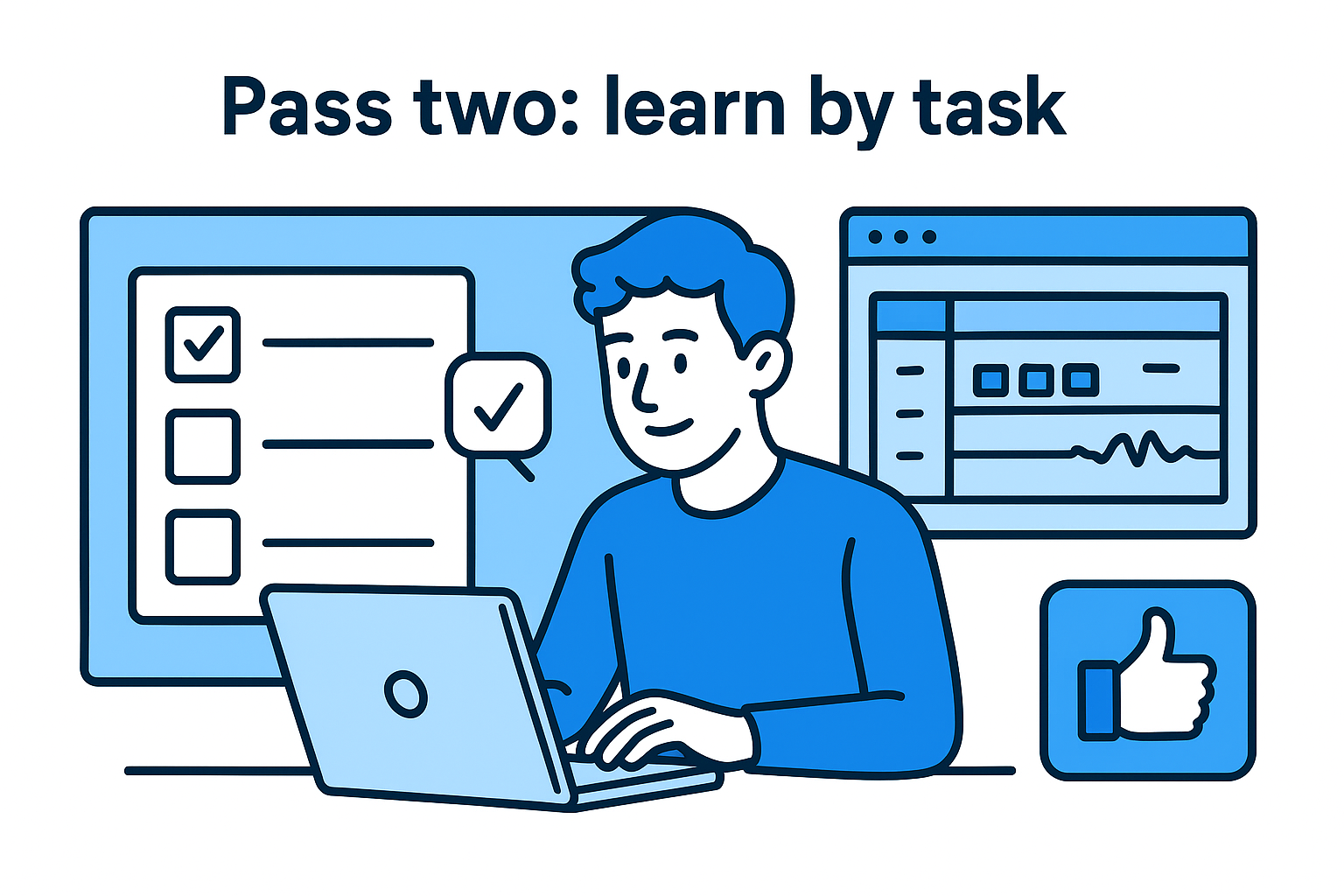
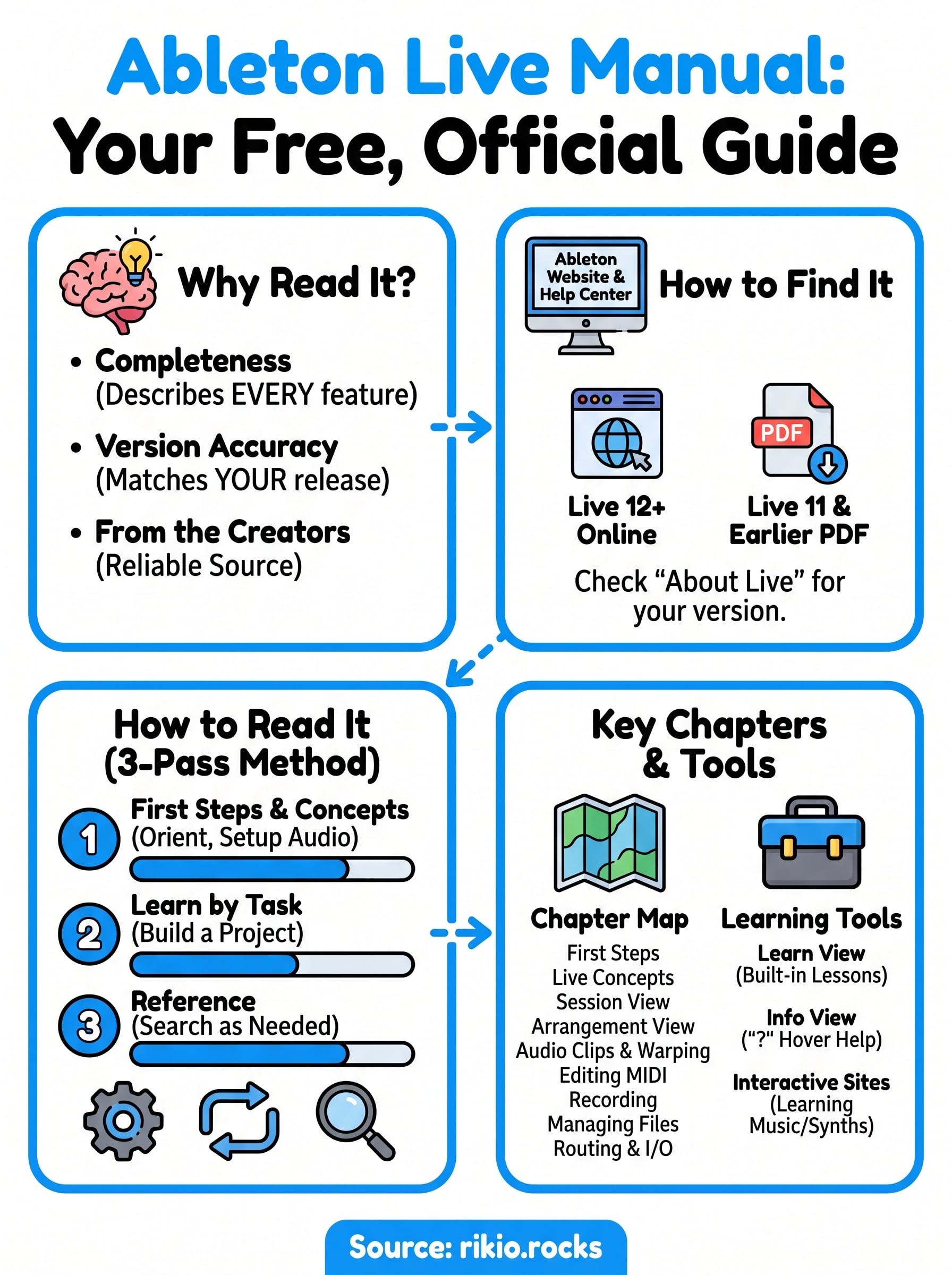
Read it in three passes. First, orient yourself with First Steps and Live Concepts. Second, learn by task, following one project from start to finish. Third, use the manual as a reference you search when something comes up. This answers the common question of how to use Ableton for dummies: start small, learn terms, then build.
Pass one: First Steps and Live Concepts
Begin with the First Steps chapter. It covers installation, authorization and the Settings window. Each Live license comes with two authorizations, so you can use the software on up to two computers, as long as you use only one at a time.
Next, set up audio before you touch anything else. Open Settings with Ctrl , on Windows or Cmd , on a Mac, and go to the Audio tab. On Windows, Ableton recommends an ASIO driver. On a Mac, Live connects to any CoreAudio device.
Then read Live Concepts. The manual itself recommends this chapter above all others because it covers everything Live is and can do, and the remaining chapters expand on it. Read it once, slowly, even if you skim the rest.
Pass two: learn by task
Reading chapter by chapter in order is the slowest route. Choose a goal and read only what it needs. Here is a worked example: finish a short loop-based track with drums, a bass line and a vocal sample over one weekend. Plan about three hours of reading, split across these steps:
- Read First Steps and Live Concepts, then set up your audio interface.
- Read the Session View and Launching Clips chapters, and build a four-clip loop.
- Read Audio Clips, Tempo and Warping, and fit your vocal sample to the project tempo.
- Read the MIDI editing chapter and write the bass line, using Scale Mode (introduced in Live 11) to stay in key.
- Read Instrument, Drum and Effect Racks, and group your drum sounds into one rack.
- Read Arrangement View, and lay the loop out as intro, build and drop.
- Read Managing Files and Sets, and use Collect All and Save so your samples travel with the project.
Every chapter in this list solves a problem you have just met, so the information sticks. Chapter names shift slightly between versions, but the topics stay the same.
Read for the next problem in your project, not for the next page in the book.
Pass three: use it as a reference
After your first project, the manual becomes a lookup tool. In the PDF, search for a term with Ctrl F or Cmd F. On the web, use the chapter navigation and the in-chapter links to jump to the exact section.
Two habits help. First, read the Welcome chapter of the version you own after each update. The Live 11 manual keeps a full "What's New" list there, which is the fastest way to learn what changed. Second, write your own notes inside Live. Choose Edit Info Text from the context menu of a track, clip or device, and the note is saved in your Live Set.
What each part of the Ableton Live manual covers
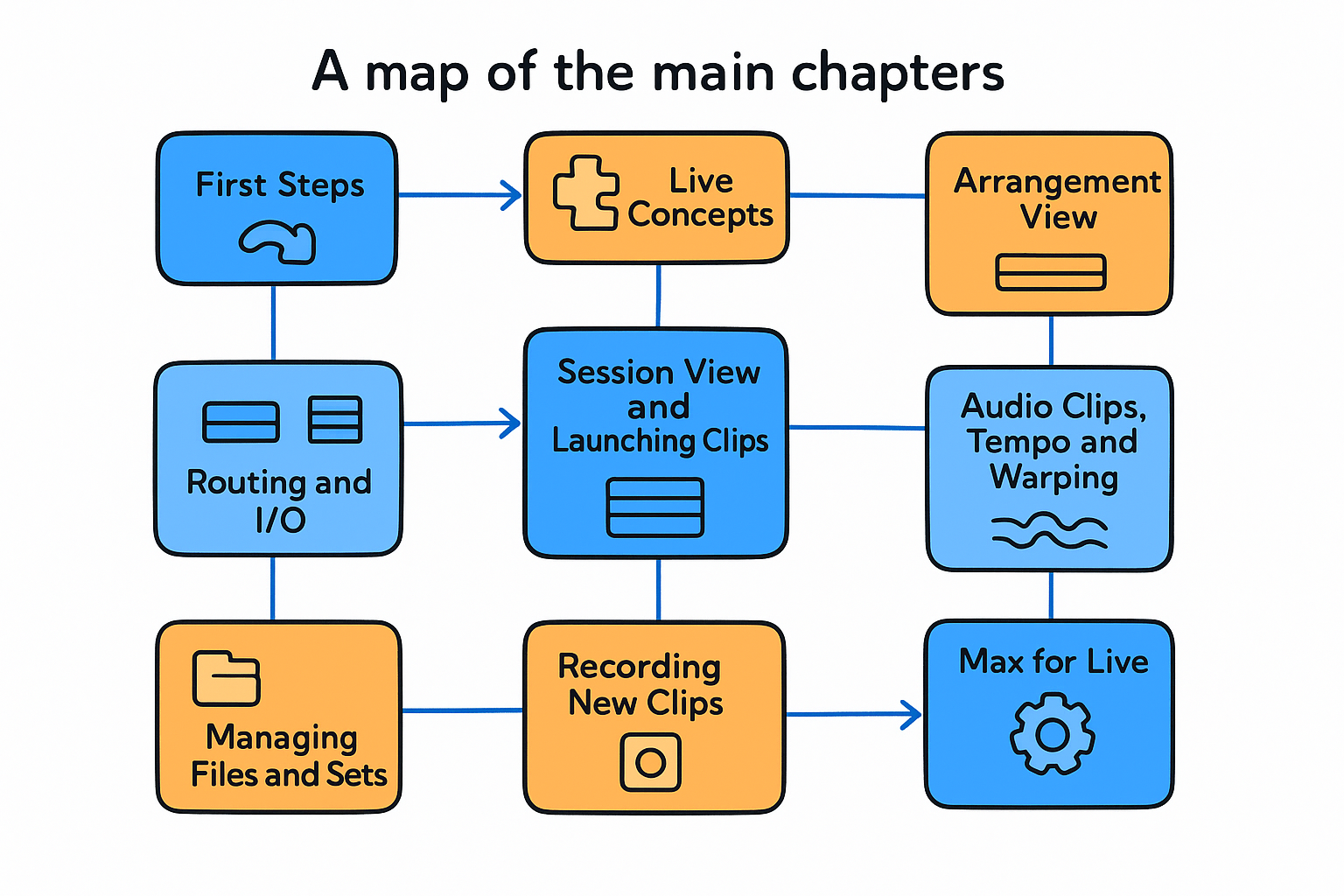
The manual is organized by area of the program, so you can map each chapter to a job in your workflow. The table below groups the chapters you will meet most often, using the names that appear in the manual's own links.
A map of the main chapters
|
Chapter area
|
What it covers
|
Read it when
|
|
First Steps
|
Installation, authorization, Settings, learning tools
|
Day one
|
|
Live Concepts
|
Live Sets, core terms, how the pieces fit
|
Day one, before anything else
|
|
Session View and Launching Clips
|
Tracks, scenes, triggering clips
|
You want to jam or sketch ideas
|
|
Arrangement View
|
Linear timeline, navigation, linked-track editing
|
You are turning ideas into a song
|
|
Audio Clips, Tempo and Warping
|
Warping, fades, matching samples to tempo
|
You use loops or vocals
|
|
Editing MIDI
|
Note editing, drawing modes, scales
|
You write melodies or drums
|
|
Recording New Clips
|
Recording audio and MIDI, file types
|
You record instruments or vocals
|
|
Managing Files and Sets
|
Saving, collecting files, analysis files
|
Before you share or move a project
|
|
Routing and I/O
|
Sending signal between tracks and hardware
|
You use outboard gear or sidechain
|
|
Synchronizing with Link, Tempo Follower and MIDI
|
Syncing with other devices
|
You perform or play with others
|
|
Max for Live
|
Building and customizing devices
|
You want to extend Live
|
Chapters to skim until you need them
Not every chapter deserves an early read. The instrument and effect reference chapters list each device's parameters. They are useful when you open an unfamiliar device, but reading them cover to cover is like reading a dictionary.
The same goes for Max for Live and the MIDI and Key Remote Control chapter. You will need them once you build your own devices or map a hardware controller. The exception is the Computer Audio Resources and Strategies chapter, which explains the CPU meter. Read it before your projects get heavy, because crackling audio is easier to fix when you understand the load.
Learning tools that work alongside the manual
Use the manual together with Live's built-in lessons and Ableton's free interactive sites. The manual gives you accuracy and depth. The other tools give you practice and the music-making basics the manual leaves out.
Learn View and Info View inside Live
Live's Learn View combines video with written explanations in step-by-step lessons. It opens by default when you first launch Live. Reopen it from the Help menu or with Ctrl Alt 7 on Windows or Cmd Option 7 on a Mac. You can filter lessons by topic and mark them complete to track progress.
The Info View is the fastest quick-help tool. Hover over any element, and it shows the name and function of that element. Toggle it with the ? key. When the Info View answers your question in one line, you save a trip to the manual.
Interactive sites and the Knowledge Base
Ableton also runs two browser-based sites. Learning Music covers the basics of making music, and Learning Synths covers synthesizers. Both work without prior experience or equipment, and you can try each idea instantly in your browser.
For problems the manual does not solve, such as driver errors or install trouble, use Ableton's Knowledge Base at help.ableton.com. The manual links to it from several chapters, including the audio interface setup article.
Is Ableton Live free?
Live is not free forever. Ableton offers a free trial, which is 90 days for current versions, and then you need a license. Live Lite is a reduced edition that Ableton bundles with some hardware and software. The manual is free for everyone, license or not, so you can read it before you buy.
Start with the manual, then make something
The Ableton Live manual is free, official and matched to your version. Open the Live 12 manual online, or download the PDF for your older version from the help center. Read First Steps and Live Concepts, then learn the rest by task instead of page by page.
Once your audio is set up and your first loop is running, keep the manual open as a reference and let the Info View and Learn View fill the gaps. If you want something to play while you work through your first lessons, try our CARDIO HITS 2026 playlist on Spotify.
19