How To DJ With A Laptop: Software, Setup, And Mixing
Basics
You don't need a booth full of gear to start mixing tracks. If you've ever wondered how to DJ with a laptop, the honest answer is that your computer already has most of what you need. A decent processor, the right software, and a pair of headphones can get you blending beats from your bedroom tonight.
The barrier to entry has never been lower. Free and affordable DJ apps now ship with features that would've cost thousands a decade ago, beat syncing, effects racks, library management, and full waveform displays. A laptop-only setup is how a huge number of working DJs got their start, and for many, it's still their preferred rig for practice sessions, livestreams, and smaller gigs.
At RIKIO ROCKS, we cover the EDM scene daily, from festival headlines to the tools producers and DJs actually use. This guide breaks down everything a beginner needs to start DJing with just a laptop: which software to choose, what your hardware specs should look like, and how to execute your first mix without spending a dollar on external controllers. Let's get into it.
What you can do with just a laptop
Modern DJ software turns your laptop into a fully functional mixing station. The software handles everything a traditional DJ setup would split across separate hardware: a mixer, two turntables or CDJs, an effects unit, and a library browser. When you learn how to DJ with a laptop, you're essentially consolidating all of that into one screen, controlled through keyboard shortcuts and your trackpad.
Your laptop can handle a complete DJ workflow, from cuing tracks to layering effects, without a single piece of external hardware.
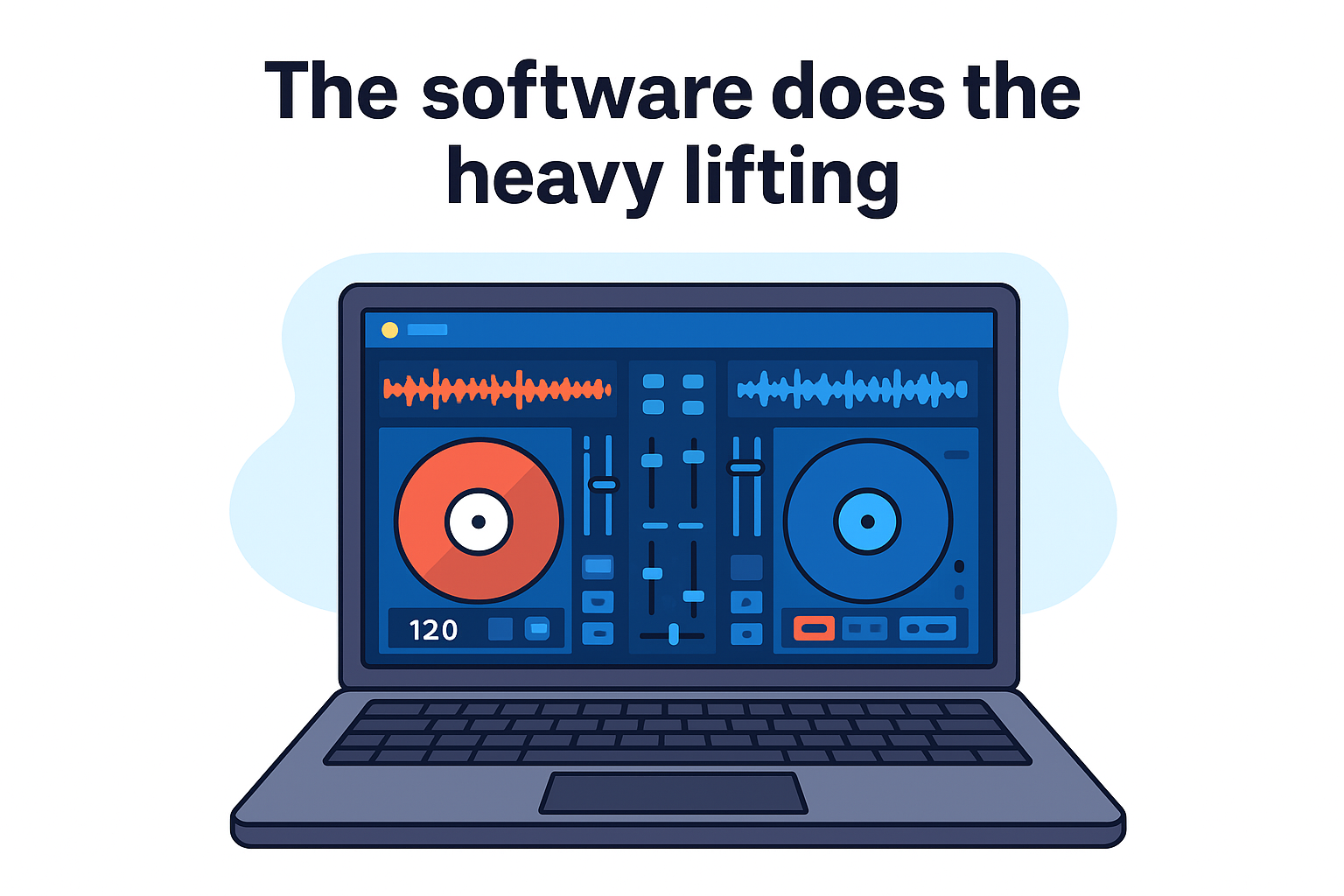
The software does the heavy lifting
DJ applications give you two or more virtual decks displayed on screen, each with a waveform view, BPM readout, and transport controls. You play, pause, cue, and loop tracks by clicking or pressing keyboard shortcuts. The built-in mixer section sits between the decks and lets you crossfade, adjust EQ bands, and apply filters, all through your mouse or trackpad.
Effects racks inside these apps add reverb, echo, flanger, and dozens of other real-time effects to your signal. Most free tiers include at least four or five usable effects. Paid tiers unlock more options, but you can produce a solid, dynamic set without spending anything on day one. Beat sync tools also detect the BPM of each track automatically, which gives beginners a reliable foundation to practice phrasing and transitions before going fully manual.
Real situations where a laptop-only setup works
A lot of people assume laptop DJing is only for practice. That assumption is wrong. Home streaming and recording sessions are the most obvious use case: you record your mix directly to an audio file or stream it live through broadcasting software, no interface required if you use software monitoring.
Small parties, house events, and low-stakes gigs with a house PA are fully doable too. You connect your laptop's audio output to the venue's speakers, load your tracks, and play. Many DJs take paid gigs this way on a regular basis, particularly for private events where a controller rig would be overkill.
Practice is where the laptop setup earns its reputation, though. You can drill transitions and beatmatching for hours without hauling gear anywhere, without any setup time beyond opening the app. That kind of low-friction repetition is what actually builds real mixing skill faster than anything else.
What your laptop needs to handle the job
Not every laptop handles DJing equally well. CPU performance matters most: you need a processor fast enough to run audio processing in real time without dropouts or crackles. A modern dual-core chip running at 2.0 GHz or higher handles most DJ software without issues. Quad-core processors give you more headroom when you add effects or run video output alongside your audio.
RAM and storage come next on the priority list. 8 GB of RAM keeps things stable when you have a large music library loaded alongside multiple apps. Storage needs depend on your library size: a track encoded at 320 kbps MP3 runs roughly 7 to 10 MB, so 1,000 songs takes around 8 to 10 GB total. An SSD also reduces the risk of audio glitches caused by slow disk reads mid-set, which spinning hard drives can produce under load.
Your operating system version matters more than most beginners expect. DJ software developers drop support for outdated OS versions on a regular cycle, so running a current version of Windows or macOS keeps you compatible with the latest software updates and audio driver support. Keeping your OS current also reduces the chance of conflicts between your audio drivers and the DJ app itself, which is one of the most common sources of crackling or latency issues on laptop setups.
Step 1. Choose DJ software that fits your style
The software you choose shapes everything about how you interact with your music, from how your library loads to how keyboard shortcuts feel after weeks of daily practice. When you're learning how to DJ with a laptop, the right app removes friction and keeps your focus on building actual mixing skills rather than fighting a confusing interface. Every major DJ software option offers either a free trial or a permanent free tier, so you can test before committing to anything.
Pick software that fits your current goals, not the app you think you'll eventually grow into.
Free options that cover the basics
Starting free is a smart move for anyone new to laptop DJing. Mixxx is the strongest completely free option available: it runs on Windows, macOS, and Linux, supports four virtual decks, includes a built-in effects rack, and handles most common audio formats without requiring extra plugins. Serato DJ Lite is another reliable free entry point, especially if you plan to add a controller down the road, since Serato is the industry standard at many clubs and venues and the interface will feel familiar when you step up.
|
Software
|
Price
|
Decks
|
Best For
|
|
Mixxx
|
Free
|
4
|
Beginners on any platform
|
|
Serato DJ Lite
|
Free
|
2
|
Beginners planning to add hardware later
|
|
Virtual DJ (Home)
|
Free (non-commercial)
|
2+
|
Casual home use and video mixing
|
When paid software makes sense
Once you commit to DJing on a regular basis, paid software unlocks features that make a noticeable difference in your sets. Rekordbox DJ runs around $10 to $17 per month depending on your plan and adds intelligent track analysis, key detection, and cloud library sync across devices. Traktor Pro 4 from Native Instruments is another strong choice, particularly if you lean toward technical mixing or want stem separation built directly into your virtual decks.
Paid plans also come with consistent update cycles and dedicated support channels, which matters when you're preparing for a live set and need to trust your tools completely. If budget is tight right now, start free with Mixxx or Serato DJ Lite, spend a solid month building your core skills, and then reassess whether the extra features actually justify the monthly cost before putting any money down. Starting free does not put you behind: it keeps your attention on technique instead of gear.
Step 2. Set up audio, headphones, and library
Before you play a single track, you need to confirm that your audio output, monitoring setup, and library are all configured correctly inside your DJ software. Skipping this step is where most beginners waste their first hour: audio routing defaults often point to the wrong output, and an unorganized library makes cuing tracks mid-mix a stressful scramble. Getting this right once means every practice session after runs without friction.
A clean audio setup and an organized library eliminate two of the biggest sources of mistakes in a live mix.
Configure your audio output settings
Open your DJ software's preferences or settings panel and look for the audio section. Set your output device to your laptop's built-in audio if you're practicing without external hardware. Most software defaults to a single stereo output, which sends both decks to the same signal, and that works fine for a basic setup. If you plan to use a USB audio interface later, you'll return here to route separate cue and master outputs to different channels.
Set your buffer size while you're in this screen. A lower buffer size reduces latency, which makes your controls feel tighter and more responsive. Start at 256 samples and test for audio crackles during playback. If you hear crackles, increase to 512 samples. Most laptops run cleanly at 256 on modern DJ software.
Pick the right headphones for cuing
Learning how to DJ with a laptop includes learning how to cue tracks privately before mixing them in. For laptop-only setups, this means using a single headphone output and toggling cue monitoring inside your software rather than splitting a physical signal. Most DJ apps include a software cue button on each deck that routes the pre-fader audio to your headphone channel for this exact purpose.
Closed-back headphones work best because they block ambient sound and let you hear the cued track clearly even when your main mix plays through speakers nearby. Over-ear models with a 3.5 mm connection plug directly into your laptop's headphone jack without any adapter.
Build and organize your music library
Point your DJ software at your music folder during initial setup and let it analyze your tracks. Analysis reads the BPM and waveform data for each file and stores it so your decks load tracks instantly. Organize your library into playlists by energy level or genre before your first practice session, using labels like Low Energy, Mid Energy, and Peak Hour. That structure means you spend time mixing, not searching.
Step 3. Learn laptop mixing controls fast
The fastest way to improve how to DJ with a laptop is to stop clicking randomly and start building muscle memory around a focused set of controls. Every major DJ application maps its core functions to keyboard shortcuts and trackpad gestures by default. Learning those mappings before you try to mix cuts your reaction time during transitions and keeps your eyes on the waveforms instead of the screen buttons.
Muscle memory built through short daily drills replaces the need for a physical controller faster than any other approach.
Map your keyboard shortcuts first
Your DJ software ships with a default keyboard layout that covers every essential function: play, pause, cue, loop, tempo nudge, crossfader movement, and effects toggle. Spend your first session printing or writing out these shortcuts before you load a single track. Below is a reference for the most common defaults across Mixxx and Serato DJ Lite:
|
Action
|
Mixxx Default
|
Serato DJ Lite Default
|
|
Play / Pause (Deck 1)
|
D
|
Space
|
|
Play / Pause (Deck 2)
|
L
|
Shift + Space
|
|
Set Cue Point (Deck 1)
|
Shift + D
|
C
|
|
Loop Toggle (Deck 1)
|
E
|
N
|
|
Tempo Nudge Up
|
R
|
Up Arrow
|
|
Tempo Nudge Down
|
F
|
Down Arrow
|
Check your software's preferences panel to confirm these values, since updates occasionally shift defaults. Remapping shortcuts to a layout that feels natural for your hand position on the keyboard is worth doing early, before any habits form around the defaults.
Control faders and knobs with your trackpad
Most DJ apps let you click and drag volume faders, EQ knobs, and the crossfader directly on screen using your trackpad. Position your cursor over a knob, hold the mouse button, and drag vertically to increase or decrease the value. Some software also supports scroll gestures on knobs, meaning a two-finger scroll on your trackpad adjusts the parameter without clicking at all. Test both methods inside your app and use whichever one gives you more precision.
Practice controlling your crossfader and channel volume faders separately rather than relying on just one. Channel faders let you bring a track in gradually from silence, while the crossfader handles hard cuts between decks. Running drills where you bring Deck 2 from zero to full volume over eight beats, using only the on-screen fader and your trackpad, builds the fine motor control that makes clean transitions possible under pressure.
Step 4. Mix your first two tracks cleanly
Your first real test of how to DJ with a laptop comes down to one simple task: getting two tracks to play together without the mix falling apart. Before you attempt anything creative, pick two songs from the same genre with similar tempos, ideally within five BPM of each other. Close tempo gaps mean less correction work and more focus on the transition itself.
Picking two well-matched tracks for your first mix removes variables and lets you focus entirely on execution.
Choose your starting tracks carefully
Load a track you know well onto Deck 1 and let it play from the beginning. For Deck 2, choose a song that starts with a clean intro, meaning a section with drums only or a simple melodic phrase before the vocals kick in. That intro gives you room to blend without competing elements clashing against your outgoing track. Songs from the same release year often share production conventions that make them sit together naturally in a mix.
Execute the transition step by step
Follow this sequence for a clean mix every time you practice:
-
Play Deck 1 and let it run through at least one full phrase, typically 16 or 32 bars.
- Load your second track onto Deck 2 and press cue to pause it at the first beat.
- Use your headphones to preview Deck 2 privately by activating the cue monitor button on that deck.
- Press play on Deck 2 inside your headphones and compare its tempo to Deck 1. Nudge the tempo up or down using your keyboard shortcuts until both tracks feel locked together.
- When you're eight bars from the end of Deck 1's current phrase, bring Deck 2's channel fader up from zero to about 70 percent volume over four bars.
- Let both tracks play together for eight to sixteen bars, then pull Deck 1's channel fader down to zero over the next four bars.
- Deck 2 is now your main track and the transition is complete.
Evaluate what you hear
After your first attempt, play the recording back if your software captured it. Listen for tempo drift between the two tracks during the overlap section, which sounds like a rushing or dragging pulse. Also check whether the low frequencies from both kick drums created a muddy buildup. If they did, try cutting the bass EQ on Deck 2 during the blend and bringing it back up once Deck 1 fades out. These two fixes solve the majority of issues beginners encounter in their first dozen mixes.
Next steps to keep improving
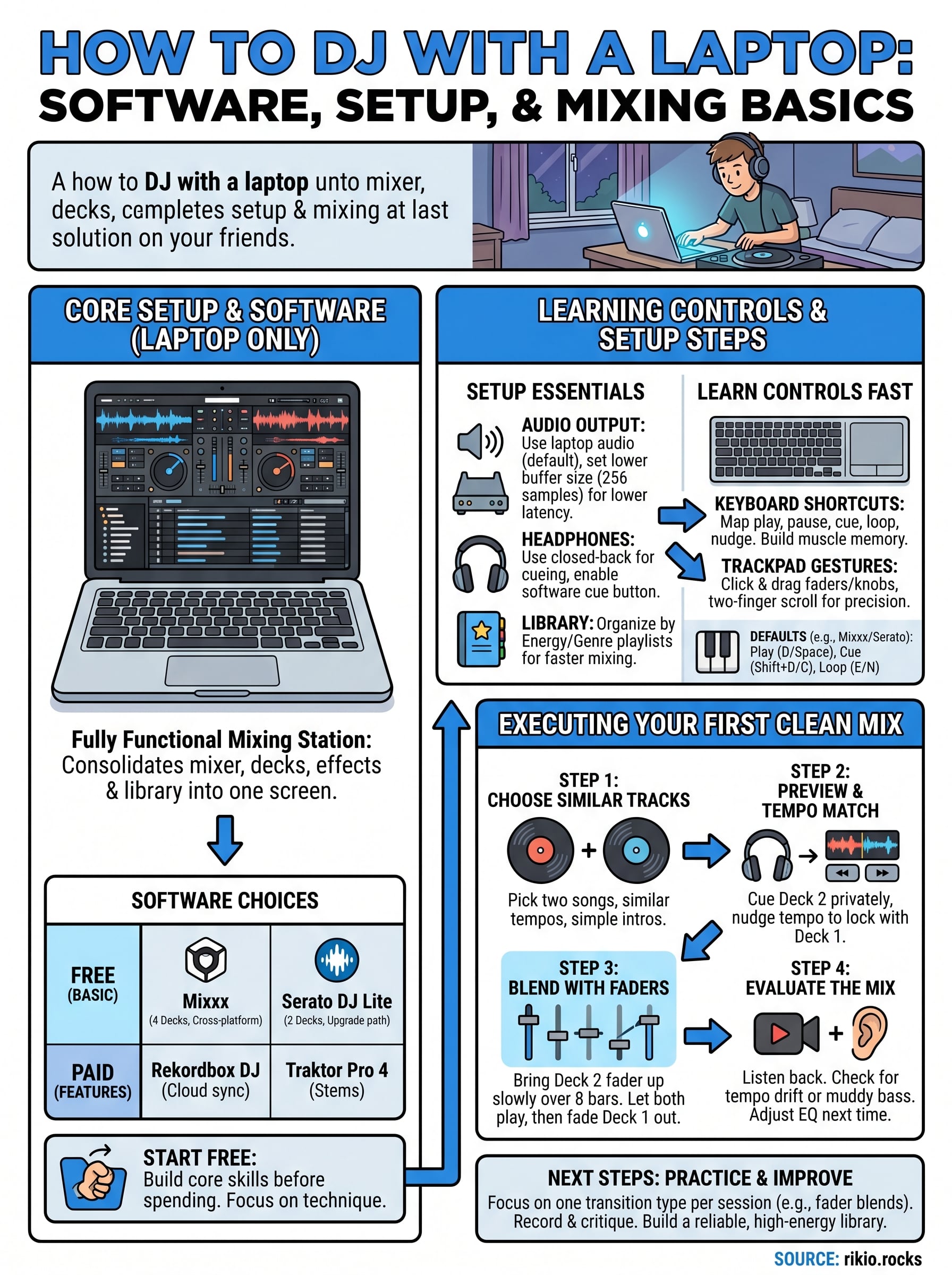
You now have the foundation for how to DJ with a laptop from scratch. The next move is to compress your learning curve through consistent, focused repetition. Practice one transition type per session rather than jumping between techniques: spend a full week on clean fader blends before moving to EQ transitions or filter sweeps. Recording every session and listening back critically will show you patterns in your mistakes faster than any tutorial can.
Building a reliable track library accelerates your progress significantly. High-energy, consistent-tempo tracks give you better raw material for drilling transitions, and practicing with music you actually enjoy keeps sessions from feeling like homework. Cueing from an energized playlist makes repetition far less tedious. Check out CARDIO HITS 2026 on Spotify for a ready-made collection of high-BPM tracks that work well for mixing practice sessions.
9